
Meta dataset access
Three quick steps to give us access to one dataset, and nothing else.
To set up and test your server-side tracking for Meta, our team needs access to one dataset in your Meta Business portfolio (Meta used to call these pixels). You assign it to us from your own account, nothing else is shared, and you can remove our access at any time.
Your part
- Find your own dataset and check it's assigned to your ad account
- Assign us as a partner on that dataset
- Let us know you're done
Our part
- Connect your server container to the dataset
- Check advanced matching and event settings
- Run test events and check deduplication
- Confirm with you when the draft is ready to go live
Before you start
- You'll need full control of the Meta Business portfolio that owns the dataset. If you're not sure, check under Business settings › Users › People.
- Know which dataset your website uses, and that your business owns it. If you're unsure, ask us.
What this access does, and doesn't, give us
| Area | Access | What that means |
|---|---|---|
| Your chosen dataset | Full control | View incoming events, run test events, check deduplication and event quality, adjust advanced matching and event settings, and connect your server container (Conversions API). |
| Other datasets or pixels | No | Only the one dataset you assign. |
| Ad accounts | No | No customer or lead information, campaign access, budgets or ad performance. |
| Facebook Pages and Instagram | No | No posting, messages or community management. |
| Catalogues | No | No changes to products or product sets. |
| Billing and payments | No | No payment methods, invoices, spend or credit lines. |
| Business portfolio settings | No | No access to your people, other assets or partners. |
When we run test events, we see the event details Meta shows for that test traffic. Personal details such as email addresses are hashed (scrambled) before they reach Meta. We don't download or keep any of your event data.
Your steps
Step 1 (you): Find your own dataset and check it's assigned to your ad account
In Meta, go to Business settings › Data sources › Datasets and pixels, and click the dataset your website uses.
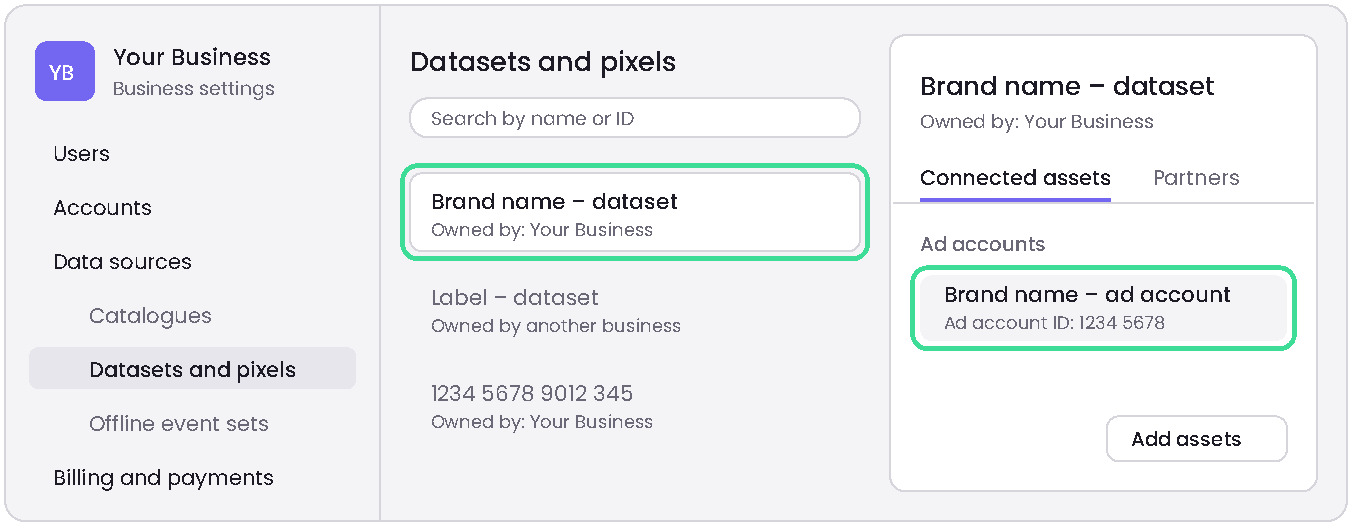
Example only: your business, dataset names and IDs will be different.
Check who owns it. The dataset must be owned by your business. If it says Owned by another business (for example a record label, agency or partner), it has only been shared with you and you can't give us access to it. Create your own dataset if you don't have one that you own (see below).
Please note: if you're new to Meta Business Manager, ad accounts and datasets must be assigned to you as a user before you can access them.
Important check: open the Connected assets tab and make sure the ad account you advertise from is listed. Your dataset should be linked to the ad account you use to run ads. If it isn't, you can simply assign it to your ad account, or ask a member of the Lupe team to do it with you on a short call.
Name your dataset
Datasets are named as numbers by default, so it's a common mistake to pick the wrong one. Consider renaming your dataset to Brand name – dataset, and tell us the name and ID you've chosen. It helps keep things organised.
Need to create a new dataset?
- In Datasets and pixels, click Add and name it Brand name – dataset.
- Untick the option to connect all new and existing data, so Meta doesn't link it to everything in your account automatically.
- Choose the ad account you wish to associate with your artist or team.
- Open the new dataset's People tab and check you're assigned with full control, so you can assign us in Step 2.
Step 2 (you): Assign us as a partner on that dataset
With the same dataset open, go to the Partners tab and click Assign partner. Enter our business ID:
Partner business ID: 300861977272185 (Lupe | TDS)
Under Full control, switch on Manage dataset, then click Assign. Leave everything else off.
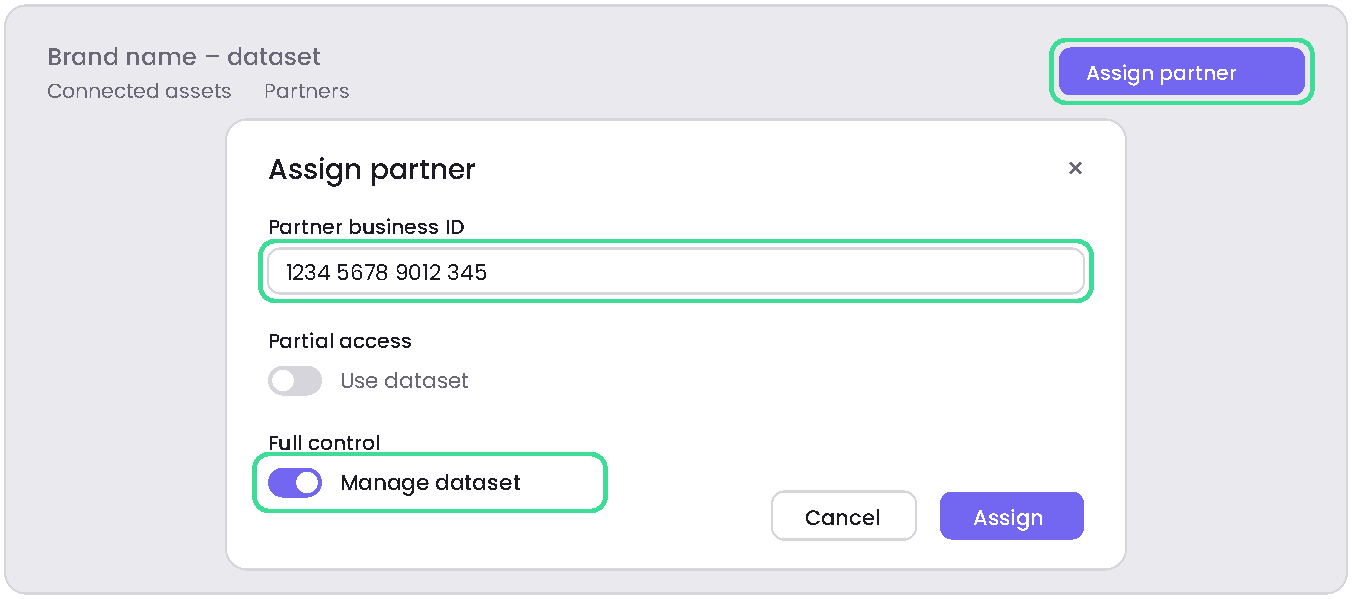
Example only: Meta's labels and layout can vary slightly between accounts and browsers.
Step 3 (you): Let us know you're done
Contact your onboarding manager with the name and ID of the dataset you assigned. Meta doesn't email us when you assign us, so this is how we know to start.
What happens next
Once you've finished, our implementation team will:
- Generate a CAPI access token to connect this dataset to your server-side GTM container
- Check that advanced matching is on and that the right events are accepted
- Run test events to confirm browser and server events arrive with the correct consent signals and aren't double-counted
- Confirm with you when tracking is live
Good to know
You're always in control
You can see or remove our access at any time from the dataset's Partners tab.
Why we don't send a partner request
Meta's request screen still asks for "pixels" access, as Meta hasn't yet updated partner requests to dataset access. This causes reliability issues for some users and browsers. The most reliable route currently is for you to assign us directly from the dataset.
Seeing an error?
Meta has to work across a huge range of devices, operating system versions and browsers, so glitches in Business settings are common and errors sometimes appear. If you see one, try clearing your cache or using a different browser. If something still isn't working, our onboarding team will resolve it with you.