
Shopify access & Stape setup
Four quick steps to get your first-party tracking live.
To set up your first-party data infrastructure, our team needs limited collaborator access to your Shopify store and the Stape Conversion Tracking app installed. You won't need to share a password or add anyone as staff, and you stay in control of the access the whole time.
Your part
- Send us your collaborator request code
- Approve our access request
- Install the Stape Conversion Tracking app
- Let us know you're done
Our part
- Configure Stape and your server container
- Add the tracking pixel and consent setup
- Enable the app in your theme
- Test end to end and confirm when live
Before you start
- You'll need to be logged in as the store owner, or a staff member allowed to manage collaborators and install apps. Double-check you're in the right Shopify account if you manage more than one.
- If your legal or IT team approves third-party apps, please get Stape Conversion Tracking cleared before Step 3. Because only you can install it, nothing goes onto your store without your sign-off.
Your steps
Step 1 (you): Send us your collaborator request code
In your Shopify admin, go to Settings › Users › Security. Under Collaborators you'll see a four-digit collaborator request code (you can generate a new one at any time).
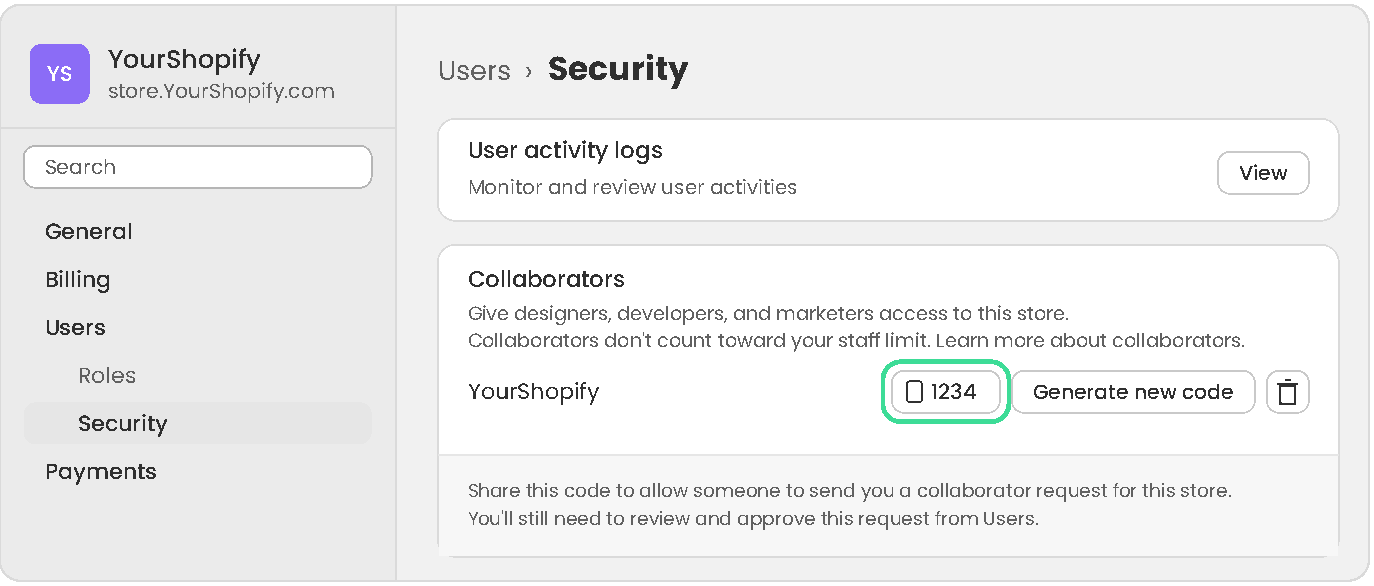
Example only: your store name and code will be different.
Email the code to your onboarding manager. Please send it directly rather than posting it in shared channels.
Step 2 (you): Approve our access request
We'll send a request using your code. You'll get an email from Shopify titled "Lupe Data | TDS is requesting collaborator access", with a short note from us so you know it's genuine. Click View request, check the permissions below, and approve it.
| Shopify area | Permission | Why we need it |
|---|
| Store settings | Manage settings | Gives access to Customer privacy, so we can configure Shopify's default cookie banner in consideration of your