
TikTok pixel access
Four quick steps to give us access to one pixel, and nothing else.
To set up and test your server-side tracking for TikTok, our team needs access to one pixel in your TikTok Business Center. You share it with us from your own account, nothing else is shared, and you can remove our access at any time.
Your part
- Find your own pixel and check you're assigned to it
- Add us as a partner
- Share your pixel with us
- Let us know you're done
Our part
- Connect your server container to the pixel
- Check advanced matching and event settings
- Run test events and check deduplication
- Confirm with you when the draft is ready to go live
Before you start
- You'll need Admin access to the TikTok Business Center that owns the pixel. If you're not sure, check under Business settings › Your information.
- Know which pixel your website uses, and that your Business Center owns it. If you're unsure, ask us.
What this access does, and doesn't, give us
| Area | Access | What that means |
|---|---|---|
| Your chosen pixel | Edit pixels | View incoming events, run test events, check deduplication and event quality, and connect your server container (Events API). |
| Other pixels | No | Only the one pixel you share. |
| Advertiser (ad) accounts | No | No customer or lead information, campaign access, budgets or ad performance. |
| Catalogs and shops | No | No changes to products or shops. |
| Billing and payments | No | No payment methods, invoices or spend. |
| Business Center settings | No | No access to your members, other assets or partners. |
When we run test events, we see the event details TikTok shows for that test traffic. Personal details such as email addresses are hashed (scrambled) before they reach TikTok. We don't download or keep any of your event data.
Your steps
Step 1 (you): Find your own pixel and check you're assigned to it
In TikTok Business Center, go to Assets › Pixels and find the pixel your website uses.
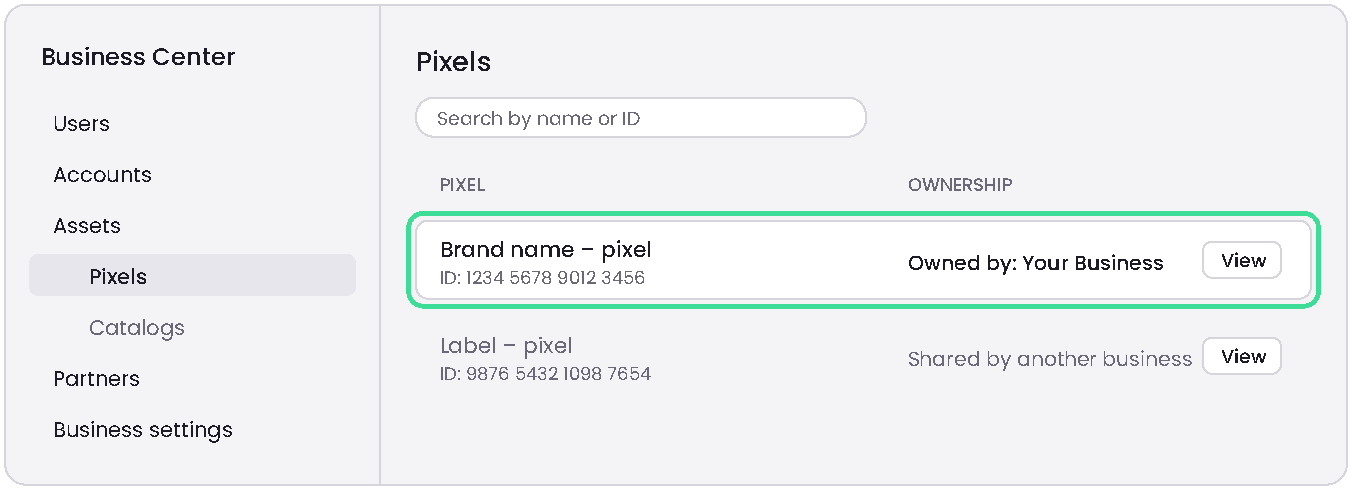
Example only: your business, pixel names and IDs will be different.
Check who owns it. The pixel must be owned by your Business Center. If it's been shared with you by another business (for example a record label, agency or partner), you can't share it with us. If your pixel only lives inside an ad account, ask us and we'll help you move it on a short call.
Being an Admin doesn't give you every pixel
Pixels must be assigned to you as a user before you can share them. Go to Users, click View next to your name and open Assigned assets. If your pixel isn't listed, click Add accounts and assets and give yourself access.
Step 2 (you): Add us as a partner
Click Partners in the left-hand menu, then + Add partner. Enter our Business Center ID:
Business Center ID: 7398888478508941313 (Lupe | TDS)
When asked whether an agreement is in effect for this partner to buy media and manage ad campaigns, choose No. Leave Share this Business Center's verification unticked, then click