
Set up Your Lupe Account
Accept your invitation, choose a password and sign in to Lupe for the first time.
Lupe is the first-party data platform from Transparent Digital Services (TDS). Before you can use it, you need to accept your invitation and set a password. It takes about two minutes.
- Open the invitation email
- Set a password and accept the agreement
- Check that you can see your dashboard
- Send you the invitation
- Give you the role and project access you need
Before you start
- You need an invitation email from TDS. If you haven't received one, ask your TDS contact.
- Use a password manager or choose a password of at least 12 characters.
- Open the invitation within 72 hours. After that, the link expires.
Your steps
Open your invitation email
Look in your inbox for an email from Lupe Portal (noreply@lupedata.com) with the subject You have been invited to the Lupe Portal.
The email shows your role, for example Admin.
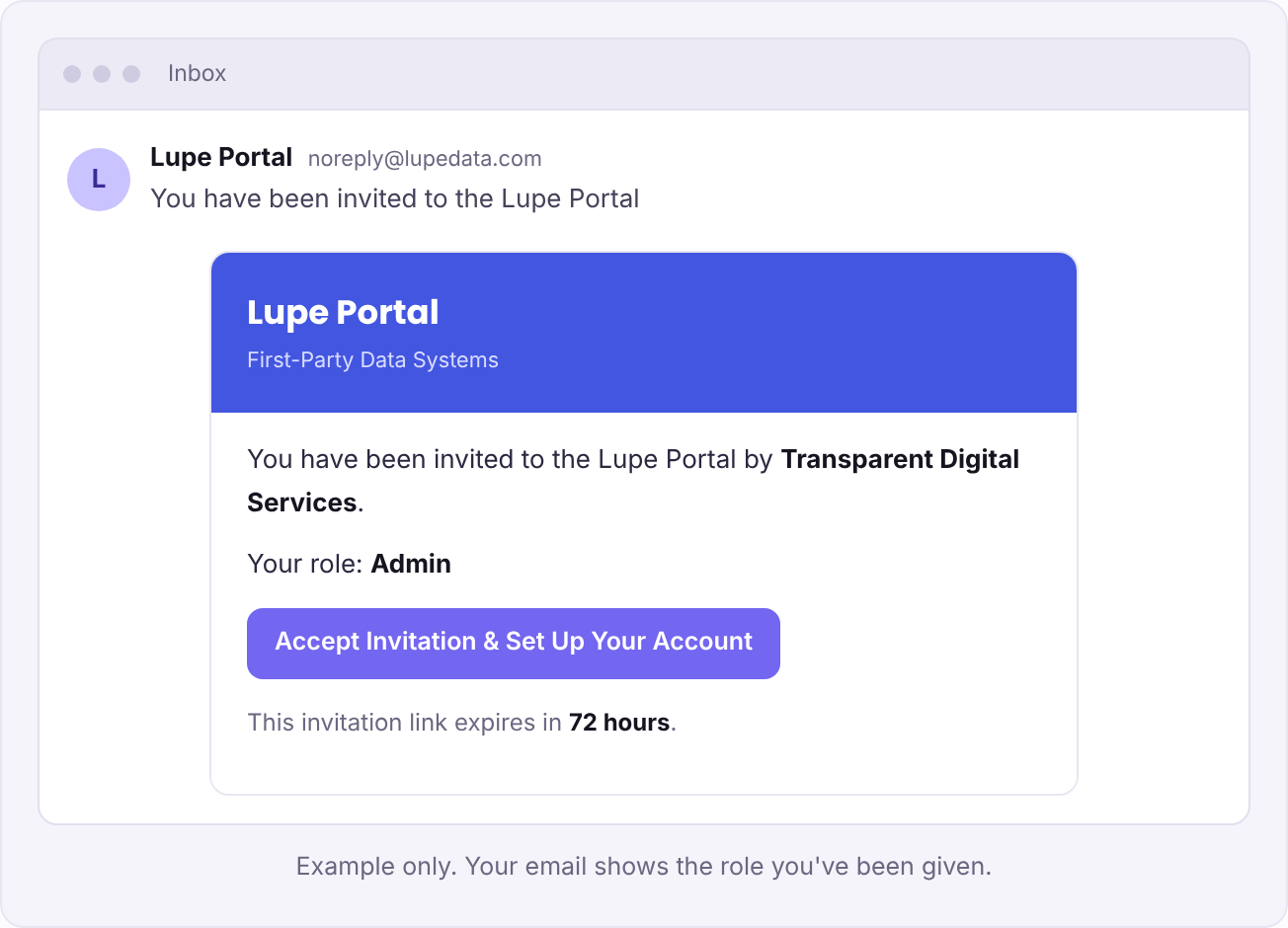
Can't find the email? Check your spam or junk folder before you contact us.
Accept the invitation
Select Accept Invitation & Set Up Your Account. This opens the Lupe welcome page in your browser.
The invitation link expires after 72 hours. If it has expired, ask your TDS contact to send a new one.
Set your password
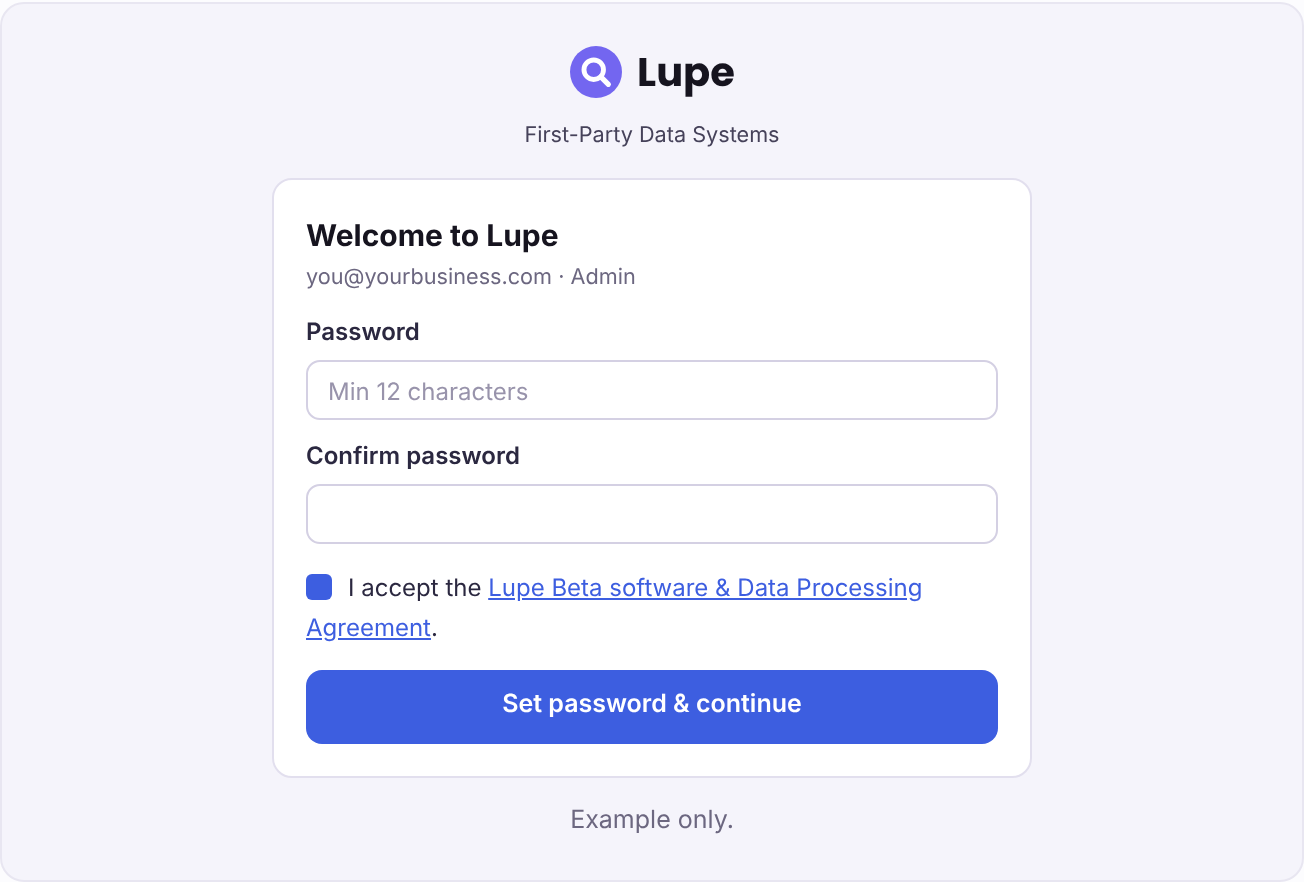
On the Welcome to Lupe page, check that the email address and role shown are yours. Then:
- Enter a password in Password. It must have at least 12 characters.
- Enter the same password in Confirm password.
- Tick the box to accept the Lupe Beta software & Data Processing Agreement. You can select the link to read it first.
- Select Set password & continue.
Check your dashboard
After you continue, Lupe opens the Projects page. The left-hand menu gives you access to Projects, Project Stats, Traffic Sources, GTM Web Containers, GTM Server Containers and Stape Containers.
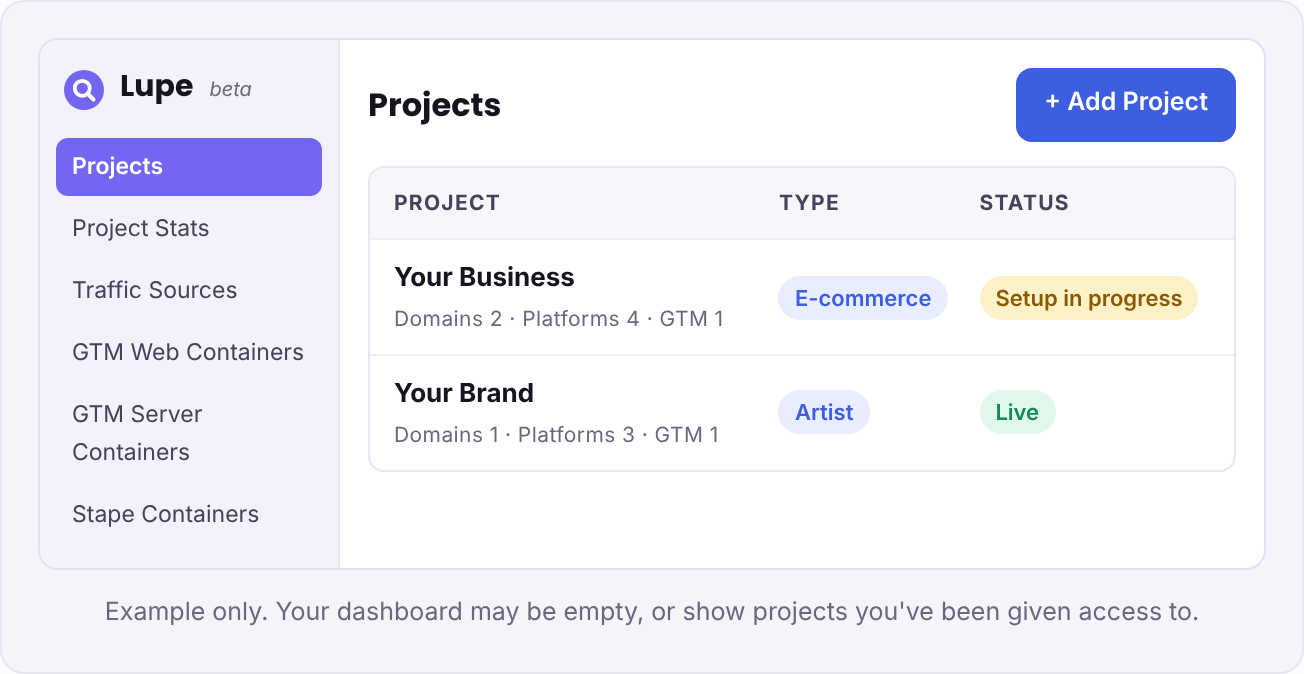
Your account is ready. Your dashboard may be empty at first, or it may show projects you've been given access to. Both are normal.
What happens next
- TDS gives you access to the projects you need, or sets up your first project with you.
- Your project appears on the Projects page. Its status shows as Setup in progress until it is live.
- We contact you if we need anything else from you, such as access to your store or ad platforms.
Good to know
- Lupe is currently in beta.
- Your role decides what you can see and do. It is shown in your invitation email and on the welcome page.
- Keep your password private. TDS will never ask you for it.